Quick Start
Before you start this guide, it is recommended to read the OpenPAI Quick Start document about how to submit a job in OpenPAI.
For a quick start, you should have an OpenPAI cluster account and a connection string which can access Azure Storage.
Browsing marketplace list
[comment]: < # TODO: Update "Data" tag to "Data template", and recording gif again >
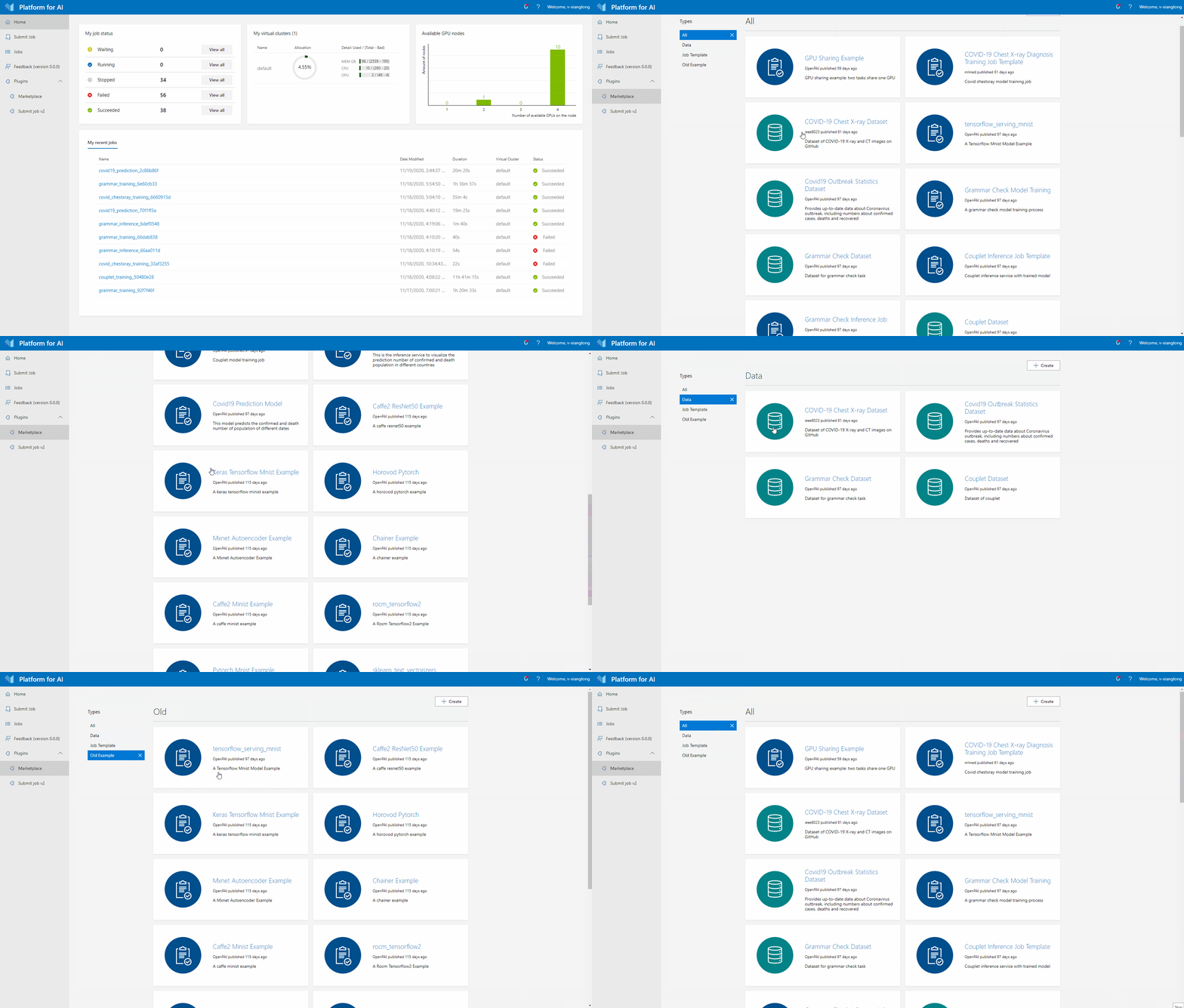
The above gif shows how to browse OpenPAI Marketplace list. In the OpenPAI webportal, user could find the entry point in the sidebar Plugins section. By default the list will display all templates. You could select certain type of marketplace template by clicking filters in the Types sidebar:
- "All": uses no filter, and displays all templates.
- "Data Template": shows data templates.
- "Job Template": shows job templates.
- "Old Example": shows legacy templates. Those templates are some legacy examples which use old framework.
Create OpenPAI job from marketplace template
In marketplace, we mainly use 2 kinds of templates, job templates and data templates. Data templates offers extra "download" function to download related dataset.
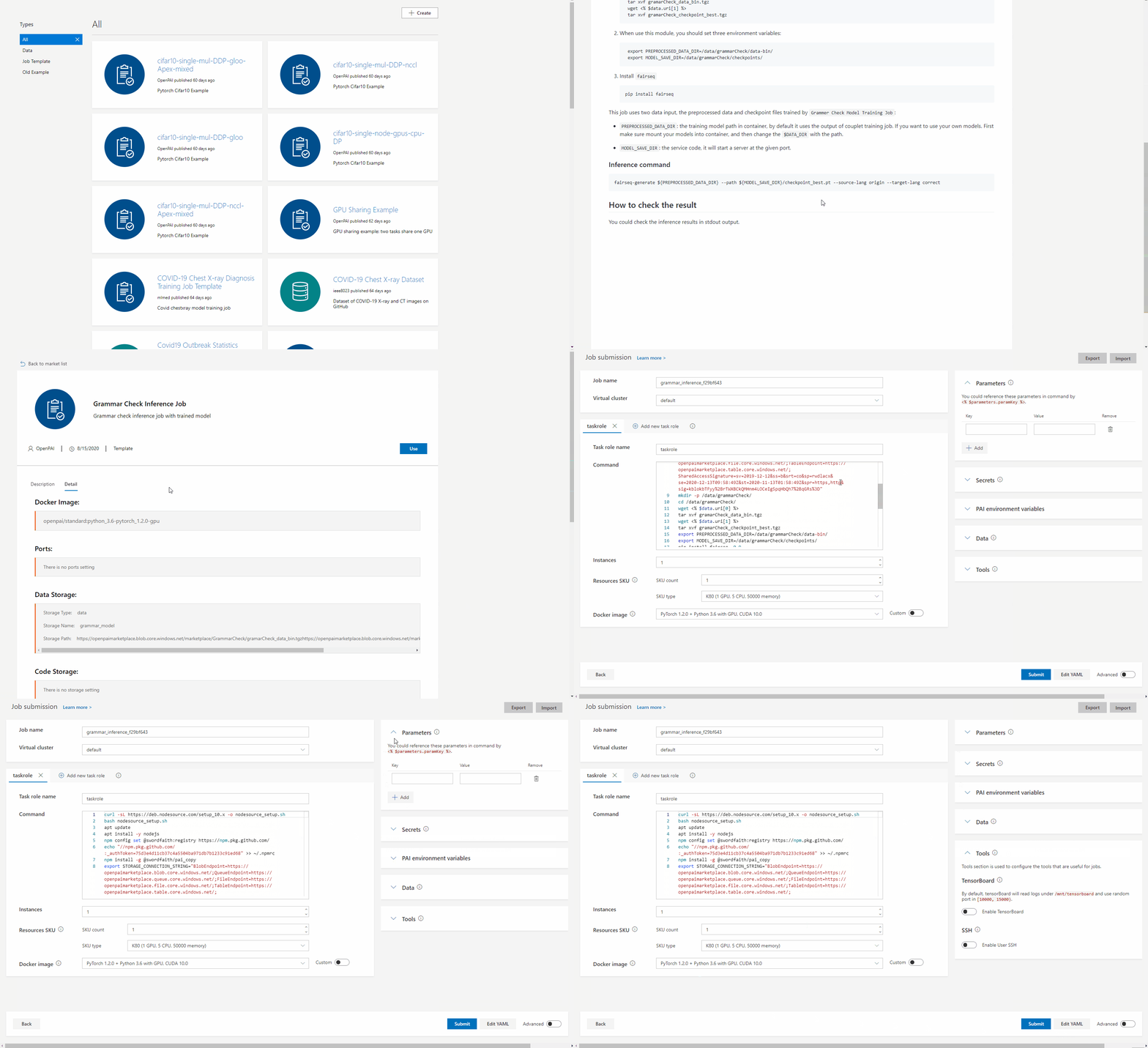
User can simply click on any template, and jump to the detail page. The detail page shows the description and some detailed info of the template. When clicking Use button, marketplace will generate corresponding job config and jump to OpenPAI submit page.
After that, user could edit the commands or other configurations, and submit the job manually. For advanced job settings, OpenPAI user manual will be a good reference. The following gif shows the process step by step.